1. Veronte Ops configuration
This section describes all the menus, options and actions that allow the user to modify the configuration and appearance of this application. These are:
Status bar
In the status bar, the user can view mission and operation relevant information, as well as modify general Veronte Ops settings.

This bar is divided into 3 'parts':
-
Status bar items: Clock and Platform selected information items are grouped here.
The user can choose to show/hide each of these elements from the Status bar settings. By default, they are displayed as shown in the image above.
The figures below show all Autopilot 1x states:
- Not connected:

Platform selected - Autopilot not connected - Not selected:

Platform selected - Autopilot not selected - Connected:

Platform selected - Autopilot connected - Maintenance mode:

Platform selected - Autopilot in maintenance mode -
Disconnected:

Platform selected - Autopilot disconnected -
Notifications: Veronte Ops notifications for users. This is always displayed in the status bar.
-
More options: By clicking on this drop-down menu, users will find options for configuring this application and its appearance.
Notification
Veronte Ops will notify the user of any changes made with notifications (visual and audible, the latter is optional), as shown in the figure below:

In addition, notifications are classified into 3 groups (Information, Warning and Error) with a color code (blue, orange and red respectively):

These notifications can be marked as read by clicking on the  icon at the top of this menu.
So, they will no longer be displayed in this menu.
icon at the top of this menu.
So, they will no longer be displayed in this menu.

However, if the user wishes to consult them, simply click on 'Show more notification...' and a new window will appear with the entire history of notifications. Here the user can search for notifications or delete them:

Besides, in the notification configuration users can choose, to some degree, which groups of notifications are shown or not. This is to a certain degree because, as the classification described above has been defined according to importance, error notifications will always be shown (as they are the most important ones) but warning and information notifications can be chosen to be seen/heard or not.
More options
Moreover, by clicking on the drop-down menu on the right, users will find more options, such as:

Changelog
Users can consult the changelog, which shows all updates made to the application.

Light/Dark mode
Change the interface display mode: Light/Dark mode.

Status bar settings
This menu allows the user to enable/disable the information items in the status bar.
Note
To save any changes, click the "Save" button in the bottom right corner of the menu.
Setup
This menu allows to edit the general settings of Veronte Ops:

Note
Clicking the 'Close' button, in the bottom right corner of the menu, will close this window and save any changes made.
Preferences
-
General
Allows enabling/disabling application animations.

Status bar - General -
CUCS The CUCS allows the integration of the STANAG protocol, that enables different control stations to interact with the same UAV.

Status bar - CUCS - Veronte Link Host
As Veronte Link is the Embention application that stores, reads and manages all the configurables of the products, the user can choose which Veronte Link to use to access the data, to access certain products. By default, the IP address 'localhost' is set, which is the Veronte Link on the same PC as Veronte Ops.
However, it is also possible to connect Veronte Ops to a Veronte Link running on a different computer, simply by entering the IP address of that computer, so Veronte Ops will be able to access the devices connected to it.
If the user has any problems when trying to connect Veronte Ops to Veronte Link, see Connecting to Veronte Link - Troubleshooting section of this manual.
-
Multicast IP Address: Address used for group transmission of data.
-
CUCS Receive/Send Port: UDP ports dedicated respectively to the reception and sending of data.
-
VSM/UA Message Rate Discovery: Frequency with which the system scans the network in search of new VSM modules.
-
Operation Mode: Defines the operational protocol.
-
Notification

Besides, the user can also choose the language of the sound notifications by clicking on the settings icon:

Below is an example of how to customize the notification settings:

-
Units
This panel shows all the system units available for the system variables.
They are sorted by variable type in alphabetical order: acceleration, temperature, velocity, etc.

Units settings panel The following table shows all the units available in Veronte Ops:
Variable Type Units Acceleration [m/s²] [ft/s²] [in/s²] [g] Angle [rad] rad[-π;π] rad[0;2π] [°] °[-180;180] °[0;360] [° ' “] °'"(N/S) °'"(E/W) Angular Acceleration [rad/s²] [rad/m²] [rad/h²] [°/s²] [°/m²] [°/h²] Angular Velocity [rad/s] [°/s] [rad/m] [rad/h] [rps] [rpm] [rph] [°/s] Area [m²] [cm²] [mm²] [km²] [mile²] [ft²] [yd²] Baudrate [Bd] [kBd] [MBd] Centimeters/Pixels [cm/pixel] Current [A] [mA] Data [bit] [byte] [KB] [GB] [bytes/s] Decibel [db] Density [kg/m³] Flow Rate [m³/s] [gal/s] [gal/h] [l/s] [l/h] Force [N] [kN] [lbf] [pdl] Frequency [Hz] [MHz] [kHz] Jerk [m/s³] Length [m] [km] [mm] [cm] [mi] [NM] [yd] [ft] [in] Magfield Variance [T²] Magnetic Flux Density [T] [nT] [gauss] [mG] Mass [kg] [g] [tonnes] [lbs] [oz] Numeral System [bin] [octal] [dec] [hex] Percentage [x1] [%] Power [W] [kW] [Kgm/s] [erg/s] [CV] Pressure [Pa] [kPa] [bar] [mbar] [psi] [mmHg] [inHg] [ft] [at] [atm] Pressure Square Error Rate [Pa²/s] Pressure Variance [Pa²] Resistence [Ω] Temperature [K] [°C] [°F] Time [s] [Time] [min] [h] [μs] [ms] Transfer [pkts/s] Velocity [m/s] [kt] [km/h] [mph] [ft/s] [ft/m] [mm/s] Velocity Variance [(m/s)²] [(cm/s)²] [(mm/s)²] Voltage [V] [mV] Volume [m³] [dm³] [mm³] [L] [mL] -
Map
In this menu, it is possible to edit the terrain data settings, such as:
-
Veronte Ops SRTM data provider:
- Host: The default SRTM data provider configured is the Veronte Terrain Provider application (i.e., localhost ), but users can enter another SRTM data provider that is located on the PC.

Map settings panel - Veronte Terrain Provider -
Preferences
Users can customize the coordinates and height units of the map.

Map settings panel - Preferences - Coordinate: Select the units of the coordinates. The available options are Decimal degress, Degrees, UTM and MGRS.
- Unit: It is possible to select the units of the height from the drop-down menu.
-
AGL

Map settings panel - AGL -
Default waypoints: Enter the default altitude, in AGL, of the waypoints created.
-
Warning Threshold: It is possible to add a warning threshold to avoid collision with terrain. This will appear as a line when users open the 'elevations' option in the created route.
For example, if the warning threshold is set to 10 metres, a red warning line will be drawn in the 'elevations' menu 10 metres above each terrain point. Also, if the mission path intersects this line, Veronte Ops will interpret this as the route colliding with the terrain:

Map settings panel - Warning
-
-
Flight trajectory angles: Defines the angle between the aircraft's velocity vector and the horizontal plane. A positive angle indicates a climb, while a negative angle indicates a descent.
Enabling this option allows the user to set the operational limits for these angles, which Veronte Ops uses to visually validate the mission trajectory against the aircraft's capabilities.

Map panel - Flight trajectory angles - Positive Angle: Sets the maximum angle for climbing in degrees.
- Negative Angle: Sets the maximum angle for descending in degrees.
If the configured Positive/Negative Angles result in a climb or descent capability that is insufficient to meet the target altitude, a Warning will be triggered.

Map panel - Flight trajectory angles warning - Map tools
Here, the user can choose, by enabling or disabling them, the group of functionalities to be displayed in the mission toolbar.

Map panel - Map tools To save the changes made, click on the 'Save' button.
Each group of functionalities has been described in the previous sections.
-
-
Status bar
- Show Clock
It is possible to customize the timezone where users are working.

Clock panel - Show platform selected
This element informs the user whether a Veronte Autopilot 1x is not connected, not selected, connected, disconnected or in maintenance mode, and the name of this device.

Platform selected panel
Manage
-
Sounds
This section lists the available sounds that can be selected through the editing/configuration of the mission.
In addition, users can also add their own audio files from local storage. For this, click Add and select the desired audio file.
Supported formats are .opus, .flac, .webm, .weba, .wav, .ogg, .m4a, .oga, .mid, .mp3, .aiff, .wma, .au.

Sound panel
-
Styles
This section allows the user to import and export custom widget styles.

Style manager panel -
Import styles: By clicking here, users can import custom styles as a zip folder or by directly selecting all desired custom styles
.cssfiles.When the styles are imported, a notification will appear:

Style manager panel - Import notification -
Export all styles: By clicking here, all custom styles will be exported as a zip folder:

Style manager panel - Export Note
Default widget styles will not be exported.
The zip folder will contain all the
.cssfiles with custom styles for the different widgets, ametadata.jsonfile and aREADMEfile:
Style manager panel - Exported files -
metadata.json file: This file contains the IDs of the styles that are assigned to the workspaces.
Danger
It is advisable not to modify this file.
-
README file: Pay special attention to this file to find out how to create or modify a style.
-
-
-
Workspaces
From this panel users can delete one, several or all workspaces created.
To do this, simply select the workspaces to be deleted and then click on the 'Delete' button.

Workspace manager panel
-
Gimbals
Users can add a predefined gimbal from this panel:

Gimbal panel Clicking the
 icon displays the following configuration panel to add a new gimbal:
Gimbal panel - Create gimbal -
Models: Select a gimbal model from the list. The available options are NextVision Trip2/Trip5, Veronte Gimbal 10z and Veronte Gimbal 30z.
-
Name Gimbal: Enter the desired name for the gimbal to be added.
-
Choose Platform: Users must select the platform for which the gimbal is configured.
The available options will always be the IDs of the connected Autopilots 1x and 'Selected platform', i.e. the platform that is selected.
-
Connections: The type of connection through which Veronte Ops sends commands to the gimbal must be selected:
-
Veronte Tunnel: When choosing this connection type, Veronte Autopilot 1x tunnel is used to send commands to the gimbal.
Users must also specify the Veronte tunnel port used: 1, 2 or 3.
Warning
Be careful! This port must match the Tunnel port configured in the 1x PDI Builder software.
-
WebSocket: In order to send commands via the Web Converter application, it is required to enter the websocket_url configured in that tool in the URL field and copy the websocket_port configured as the camera's udp connection in the port field.
-
-
Advanced: Depending on the gimbal model chosen, some additional options can be configured which are characteristic of each gimbal.
Note
This option will only appear after the selection of the gimbal model.
- NextVision Trip2/Trip5 model: It is possible to enable/disable the sending of some specific messages.
- Veronte Gimbal 10z/30z models: The Id of the gimbal block that has been configured in the Veronte Autopilot 1x setup can be entered. For more information on this, please refer to the Gimbal - Devices blocks of the Block Programs section in the 1x PDI Builder user manual.
Then, the created gimbal will appear on the panel:

Gimbal panel - Gimbal added  Edit gimbal: Allows the user to access again to the configuration menu described above.
 Remove Gimbal: Removes this gimbal.
-
-
Script libraries
The Script Libraries section allows you to create and manage custom libraries in native JavaScript directly within Veronte Ops. It is used to define reusable custom functions or constants to automate processes or perform complex calculations not provided by default.
Click on + Add library to insert custom code.
Warning
It does not support loading external libraries that are incompatible with native JavaScript.
Further technical details are available by clicking the  information icon.
- Platform icon
This icon allows the user to locate and follow the position of the platform at any time during the operation.
By right-clicking on it, users will access its options:

-
Follow: Keeps the platform always centered on the map during operation.
-
Edit icon: Users will access to the settings menu:

Platform icon settings -
Set icon: Users can customize the icon that will be used to represent the position of this unit on the map. They can choose one of the default icons or upload one from the laptop, as well as set the icon size.

Platform icon settings - Set icon -
Set tooltip: Allows the user to display a variable next to the platform icon.

Platform icon settings - Set tooltip The following parameters must be configure by clicking on 'Add new var':

Platform icon settings - Set tooltip configuration - VRef: Select the desired variable to be displayed.
- Unit and Decimals: The units and decimals can also be modified. These parameters will appear depending on the variable chosen.
- Icon: Choose the icon to be shown next to the variable.
- Persistent: When enabled, this tooltip will remain displayed during the operation. Otherwise, it will only appear when clicking on the icon.
An example is shown here:

Platform icon settings - Set tooltip example 
Platform icon settings - Set tooltip example 
Platform icon settings - Set tooltip example
-
Set alerts: These alerts are bit variables that appear next to the platform icon when in 'error mode'.
By default, some bits that are sent in the autopilot 'Extended Status Message' are configured as alerts. The user can add as many alerts as desired.

Platform icon settings - Set alerts They are displayed with the icon, which has been configured with them, flashing red when in 'error mode'. When the platform icon is clicked on, the name of the variable that has triggered this alert will be displayed. An example is shown below:

Platform icon settings - Set alerts -
Direction arrows: Users can choose variables from the real angular variables of the system to be displayed as the yaw and heading arrows.
By default, the variables displayed are Yaw and Heading respectively. In addition, users can change the color of each arrow as desired.

Platform icon settings - Direction arrows -
Trail: The trail path of the platform can be customized.

Platform icon settings - Trail - Color: Set the color trail.
- Dash line length: Sets the length of the dash line. This change is visualized when a number other than of 0 is set.
- Dash line space: Sets the space between dash lines. This change is visualized when a number other than of 0 and greater than dash line length is set.
- Pick Up Time: Sets the time for the first point of the trial to be removed. This change is visualized when the time is other than 0 s.
- Max distance: Sets the maximum length of the path to be drawn.
-
-
Fly to loiter: Create a volatile loiter and change the current route.
Note
The platform will remain the altitude it had before this command.

Platform icon - Fly to loiter -
Fly to hover: Create a volatile waypoint and change the current route.
Note
The platform will remain the altitude it had before this command.

Platform icon - Fly to hover -
Follow leader: With this action the platform will follow a moving object (it can be another platform). For more information on this, see Follow Leader automation of the 1x PDI Builder manual.
The platform icon changes its appearance depending on the situation:
-
Platform disconnected:
- When Autopilot 1x is not connected, the platform icon is 'translucent grey'
- By default, it is placed in the world coordinates (0,0).

Platform icon - Translucent grey -
Platform connected:
-
During operation/configuration creation:
- The platform icon is 'translucent colored', indicating that GPS data is not being received, i.e. Position not fixed status.
- It is placed in the Initial position UAV defined in the Operation Panel.

Platform icon - Translucent colored -
During operation/simulation:
- The platform icon is 'colored', indicating that GPS data is being received/simulated.
- It is placed in the actual position/simulation position.

Platform icon - Colored
-
-
Import/Export
Furthermore, all these settings can be exported and imported from one Veronte Ops to another, for example to move them from one PC to another.
When the user tries to import a new Veronte Ops configuration, the following confirmation message will appear:

Import Veronte Ops configuration
Terms and Conditions
Users can consult the 'End User License Agreement (EULA)' by simply clicking on this button.
Log in
Authentication is required before any operation.


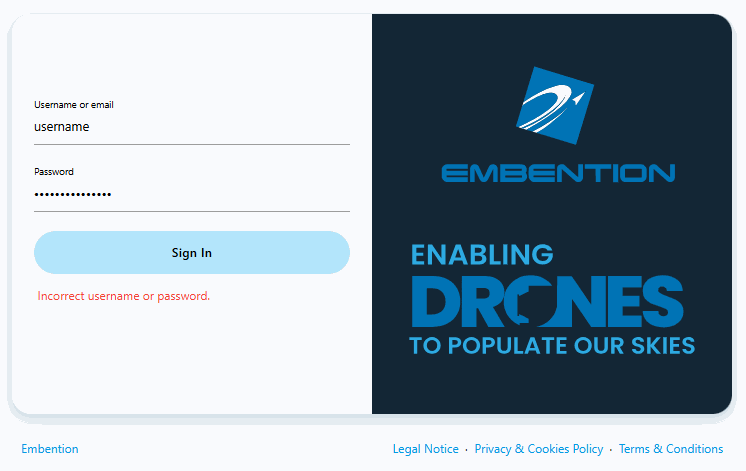
After clicking Sign in, a new window will open for users to enter their credentials. If users do not have credentials, do not know what they are or have any problems logging in with them, please contact the support team via the Joint Collaboration Framework opening a Ticket or contact sales@embention.com.
If the login is successful, the screen will change as shown below:

Warning
If incorrect credentials are entered, the system will display the error message Incorrect username or password.
© 2026 Embention. All rights reserved.